Moon doesn't analyze every entry the moment you save it. Instead it looks
at whole periods, where the real patterns are:
Day recap — one analysis of your entire day, available
once the day is over. Week recap — a summary of your
week. Month recap — the big picture of your month.
Year recap — your whole year as one story.
Every day, week, and month recap opens with a picture the app draws from
your own entries (see "What are visual recaps?" below). The AI text is
never generated by itself — you're in control: tap Get deep
analysis (in a year recap, Generate Recap) when
you want it. Each day, week, month, and year can be analyzed once:
deleting a recap doesn't make room for a new one.
Generating takes a few moments. You can switch to another app
meanwhile — just don't close Moon. The ⋯ menu at the
top of a recap shares it as a PDF or deletes it.
Every new install starts with a free trial of Premium+
(at least 14 days, always long enough for two week recaps), so all recaps
are available from day one. After the trial, the visual recaps and the AI
recaps of weeks, months, and years come with Premium;
the AI recap of each day comes with Premium+.
Tap Generate Recap, wait a moment — and the week comes back as a story, not a list of numbers.
What are visual recaps?
Every finished day, week, and month gets a recap that the app draws
itself, straight from your entries and ratings — no AI, no waiting,
nothing to generate. It is there as soon as the period is over and
counts every entry, including rating-only and Local Mode ones.
Day — your entries on a timeline by the hour, how the
day compares with your usual and with the same weekday before, factors
that came back after a long pause, and sleep and steps if Apple Health
is connected.
Week — how the week went day by day, which days and
times of day ran above or below your usual, the week's main factors, and
its best and hardest moments.
Month — every day of the month in its mood colour, how
many days were good, average, or hard, how the month compares with
earlier months, and its main factors.
Tap a day or an entry in the picture to open it. Want the reasons
behind the picture? Get deep analysis adds the AI text
on top. Visual recaps are part of Premium (and of the
free trial); without a subscription you see their outline with an
Unlock with Premium button at the end.
What's included in Free, Premium, and Premium+?
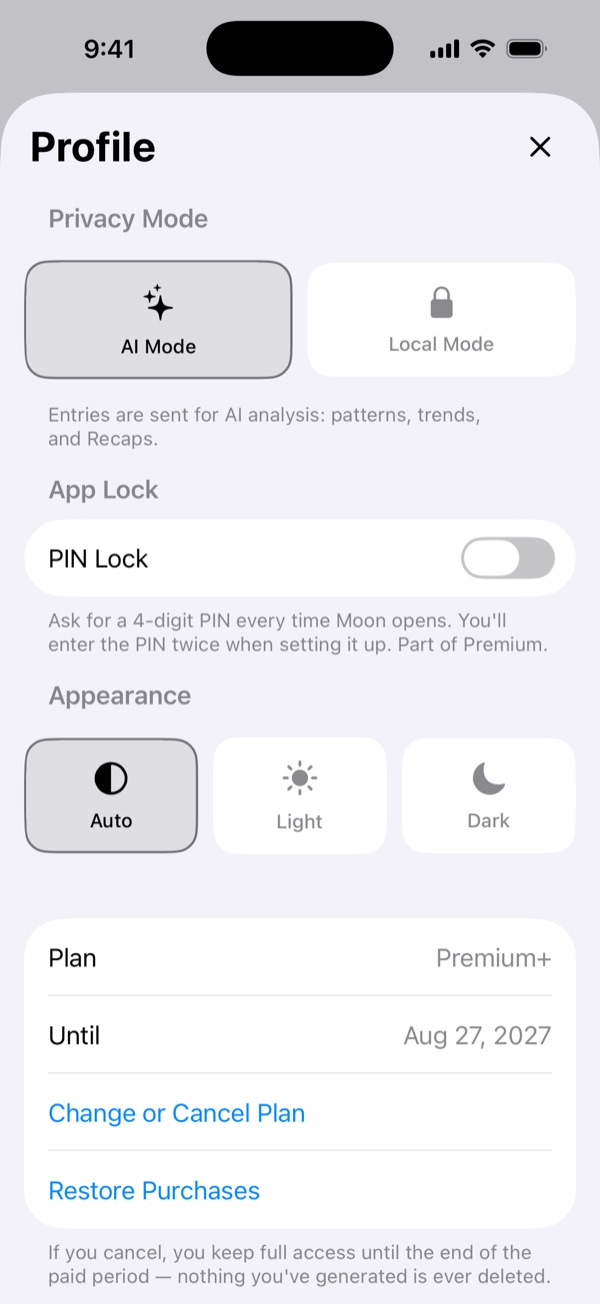
First things first: every new install gets Premium+ for free for
at least 14 days — no purchase, no card, nothing to cancel. When the
trial ends you're on Free until you subscribe.
Free — the full journaling core: mood logging, notes,
journal, calendar, the mood chart, search, the Daily and 4× a Day
reminders, widgets, iCloud sync, plus manual iCloud backup (Back Up Now)
and restoring your data from a backup file or iCloud.
Premium — everything in Free, plus visual day, week, and
month recaps, Rhythms, three trend lines on the mood chart, and custom
reminders; the AI: week, month, and year recaps, Fills & Drains, the
"What changed" card, voice input, and Apple Health context in the
analysis; automatic iCloud backup, data export, and the app lock with a
4-digit PIN.
Premium+ — everything in Premium, plus the AI recap of
every single day.
Both plans come monthly or yearly; current prices are shown on the
purchase screen in the app. Already subscribed on another device or
reinstalled the app? Settings → Restore Purchases
brings your plan back.
How does the free trial work?
It starts by itself the first time you open Moon: at least 14 days
of Premium+ — visual and AI recaps, Rhythms, the trend lines,
Fills & Drains, voice input, automatic backup, Apple Health context,
the App Lock. No purchase, no card details, no Apple sheet, and nothing
to cancel.
The trial always covers two week recaps. A week's recap
unlocks on the Monday after it, so if you install mid-week the trial runs
a few days longer than 14 — through the Wednesday after your second recap
Monday — so you get to read both.
To see how much is left, open Settings → Subscription:
the plan reads "Free trial" with the date it ends. The purchase screen
shows the same date.
When the trial ends, Moon tells you once, with a short note on what
pauses and a Subscribe button, and then simply goes
back to Free: the journal, calendar, mood chart, search, and manual
backup keep working; new AI work stops, and the visual recaps, Rhythms,
and trend lines lock until you subscribe. Everything
generated during the trial — recaps, factors — stays yours and stays
readable. Entries you write after the trial without a subscription are
not analyzed later, even if you subscribe.
Liked it? Subscribe any time from Settings or from any
locked feature's Unlock button. The purchase screen shows
exactly what you'll pay and when.
The trial is tied to your iCloud account: reinstalling the app or opening
Moon on a second device continues the same trial rather than starting
new ones.
How do I cancel my subscription or switch plans?
In the app: Settings → Change or Cancel Plan — this
opens Apple's subscription sheet, where you can switch between Premium
and Premium+, change between monthly and yearly billing, or cancel. The
same sheet is available in your App Store account settings.
If you cancel, you keep full access until the end of the period you've
already paid for — the plan simply doesn't renew. Note that deleting the
app does not cancel a subscription. (The free
trial is different: it isn't a subscription, so there's nothing to cancel
— it just ends.)
Upgrading Premium → Premium+ takes effect immediately — Apple refunds
the unused part of the old plan and charges the new one. Downgrading
Premium+ → Premium, or switching between monthly and yearly billing on
the same plan, takes effect at the next renewal.
The Subscription section in Settings.
What happens to my data if I go back to Free?
Whether the free trial ends or a subscription lapses — nothing is deleted,
ever. Your entries, recaps, and extracted factors all
stay on your device and in your private iCloud, and every recap that was
already generated remains readable.
Free simply stops new AI work: no new recaps and no new factor
extraction, and entries written on Free are not analyzed later, even
after you subscribe again. The Fills & Drains view itself locks —
your factors are kept, but hidden until you subscribe again, and then
they reappear exactly as they were. Visual recaps, Rhythms, and the trend
lines lock the same way and come back with a subscription, since they
are drawn from your entries. Your journal, calendar, mood chart, and
search keep working as always.
Are entries made without a subscription analyzed later?
No. The AI analyzes only entries made while a subscription or the free trial is active. Entries written without one stay in your journal, calendar, and charts, but they never reach the AI — not in recaps, not in Fills & Drains, not in the "What changed" card — even if you subscribe later.
Everything from your subscribed time stays in. Say you subscribed in January, stopped in February, and came back in May: your recaps and Fills & Drains count January and everything from May on, and February to April are left out. A short line under the recaps and Fills & Drains reminds you of this; tap "Got it" to hide it.
This way you pay only for the analysis you use: a month bought after a long free stretch goes to your new entries, not to months of old ones.
How does the App Lock work?
The App Lock protects your diary with a 4-digit PIN: the
app asks for it every time you open Moon or return to it. Turn it on in
Settings → App Lock; there you can also change the PIN or
enable Unlock with Face ID so you rarely have to type it.
Forgot your PIN? Tap "Forgot PIN?" on the lock screen and
confirm with Face ID / Touch ID or your device passcode — then simply set
a new PIN. Nothing is erased, your entries are safe.
The PIN is stored only on your device, in the system Keychain — it never
leaves your phone and isn't part of backups. Deleting the app removes it,
so a fresh install starts unlocked.
The App Lock is part of Premium (and of the free trial).
If the trial ends or your subscription lapses, the lock pauses (stops
asking) but your PIN is kept — subscribe and it picks up right where it
left off.
Turning it on (the PIN is entered twice), then the lock screen the next time Moon opens — "Forgot PIN?" is at the bottom.
Where do I find the Day recap?
Two places:
Calendar — tap a day that has entries, then tap the
✦ sparkle button in the top corner of the day's list.
Insights — switch the chart to D: the recap
card under the chart points at the displayed day (for today it shows
"Yesterday's recap", since today isn't finished yet).
A day's recap opens the next day — a finished day is what makes it
honest. If you logged anything today, tomorrow at 9:00 Moon lets you
know the day's recap is ready. These notifications can be turned off in
Settings → Notifications → Recap Notifications.
The visual day recap is part of Premium; the AI text of
the day comes with Premium+. The free trial includes
both, so you can try them from your very first day.
Calendar: tap a day, then the ✦ in the day's list.
How do the Week, Month, and Year recaps work?
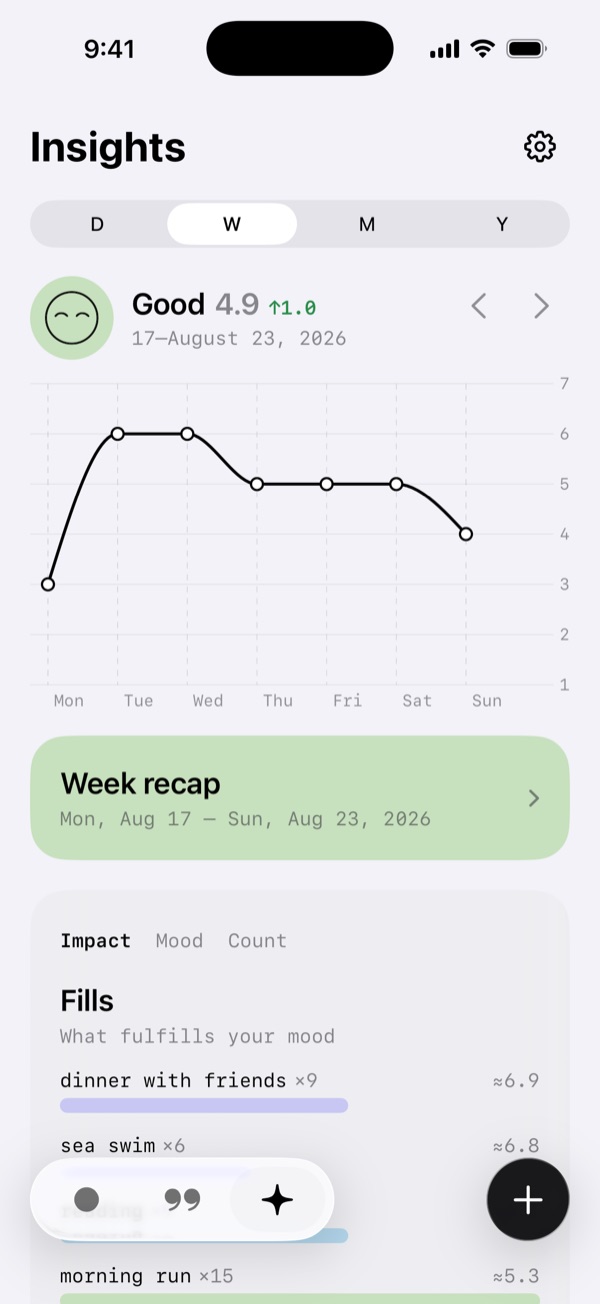
Week recap: open Insights in the
W period — the recap card under the chart follows the week
you're looking at. If you logged at least one entry during the week, Monday
at 9:00 you'll get a reminder. One recap per week.
Month recap: switch the chart to M — the
card points at the displayed month (for the current month it shows last
month's recap). A reminder arrives on the 1st. One recap per month.
Year recap: switch the chart to Y —
the card points at the displayed year (for the current year it shows
last year's recap). There's no reminder for it. One recap per year.
Week and month recaps open with a visual recap drawn by the app. The AI
text for all three comes only when you tap Get deep
analysis (for the year, Generate Recap), and
the longer the period, the deeper the analysis looks — the year recap
builds on your months, the month recap on your weeks, the week recap on
your days.
Month and year recaps also describe your mood rhythm:
which weekdays and times of day usually run higher or lower for you, and
whether this period held that pattern or broke it. Your first two week
recaps describe it too, so you meet it early.
Week, month, and year recaps are part of Premium — and
of the free trial.
Paging back through weeks — the recap card follows the week you're looking at.
Why can't I generate a recap?
The visual recap needs no generating. When the AI text can't be
generated, the recap screen says why. The usual reasons:
The period isn't over yet. A day's recap opens the next
day, a week's on Monday, a month's on the 1st, and a year's on January
1.
It was already analyzed. Each day, week, month, and
year gets one recap, and deleting a recap doesn't make room for a new
one.
There's nothing to read. The AI works from your notes,
so a period with mood ratings only has nothing to analyze — its visual
recap is still there.
All of the period's entries were made in Local Mode or without a
subscription. Such entries never reach the AI. In Local Mode
the screen offers Switch to AI Mode: entries you write
after switching can be analyzed.
Your plan doesn't include it. The AI recap of a day
needs Premium+; week, month, and year recaps need Premium. And if the AI
allowance for your billing period is used up, recaps pause until it
renews.
Does Moon track my best and worst days and times of day?
Yes. As you log, Moon quietly accumulates your mood rhythm:
which weekdays tend to be your best and worst, and how your mood usually
runs across the day — morning, afternoon, evening, night.
You can look at it any time in Rhythms (see the next
question), and the visual week and day recaps set each period against
it.
The AI talks about it too: the month and year recaps,
and your first two week recaps, look at your rhythm over your whole
history and over that specific period, then compare the two —
did this month follow your usual pattern, or did a normally hard weekday
suddenly turn good?
The rhythm needs repetition to be honest, so it only speaks up once a
weekday or a time of day has enough entries behind it — with regular
logging, a few weeks is enough.
What is Rhythms?
Rhythms is a dashboard of your long-term patterns. Open it with the
pulse button at the top of Insights, next to the gear.
Everything in it is computed on your phone from your 1–7 ratings, with
no AI, and Local Mode entries count too. It updates once a month, on the
1st.
Inside: a month score out of 100 (your average, good
and low days, how steady the days were, and how quickly you recover
after a low day), every month at a glance and the year in pixels, your
best day of the week, time of day, and month of the year, how fast you
bounce back after a bad day, sharp swings, streaks, and how often you
log.
Diary extract turns the last 30 or 90 days into a PDF —
one line per day with your mood, your words, and sleep from Apple Health
— handy to show a psychologist or a doctor. The share button at the top
saves the whole Rhythms screen as a PDF.
The statistics need time: they appear once your first five weeks have
passed, and until then a "Still collecting" card shows what's missing.
Rhythms is part of Premium (and of the free trial);
without a subscription you see its outline with an Unlock with
Premium button at the end.
What Apple Health data does Moon use?
If you connect Apple Health in Settings, Moon reads
exactly four things, read-only: sleep, workouts, steps, and
active energy. Nothing else — no heart rate, no HRV, no other
medical signals.
This data adds context to your recaps: the day recap sees that day's
sleep and activity, and the week, month, and year recaps include a short
factual line — average sleep, workouts, steps — compared with the
previous period. The AI states these facts and never interprets
them: no physiology theories, no body-mood conclusions unless your own
notes make the link. The visual recaps show sleep and steps next to your
mood as plain figures, and the Rhythms diary extract lists each night's
sleep.
Health data is read on your device per recap and is never stored on our
servers. You can disconnect at any time in Settings;
iOS-level access is controlled in the Health app under Data Access.
Apple Health context is part of Premium (included in the
free trial).
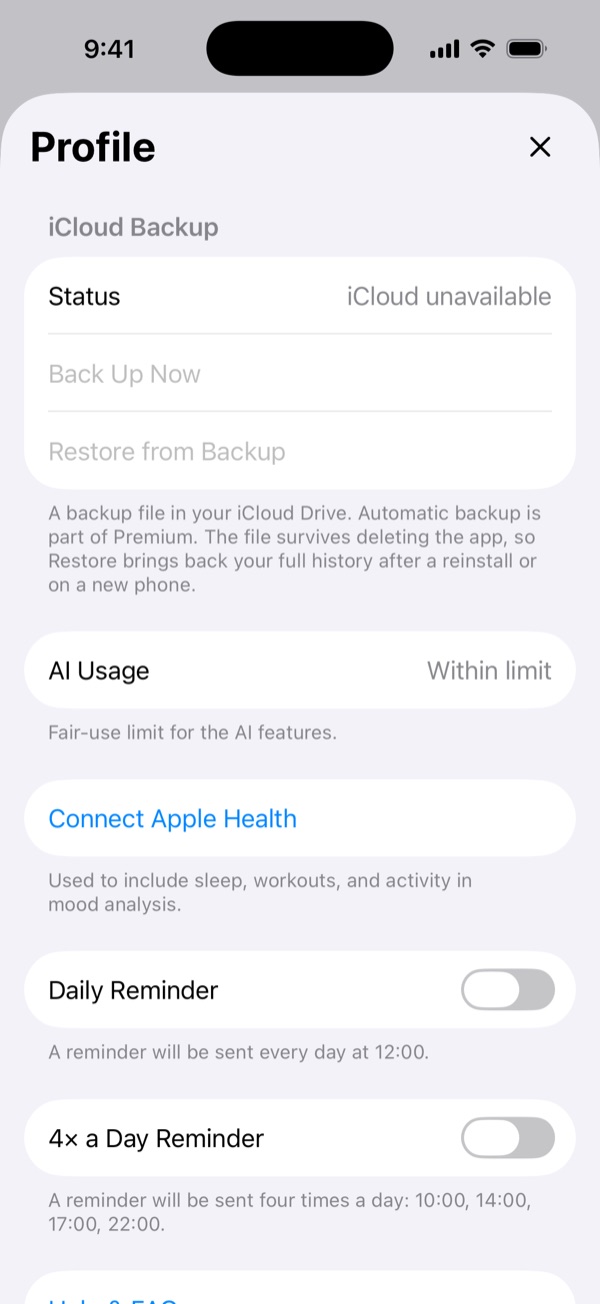
Settings → Connect Apple Health.
Where are the settings?
Behind the gear in the top-right corner of the
Insights tab. One screen, in labelled groups:
Subscription (your plan and AI usage), Support (Write to
us, help, rating the app), AI and Privacy (AI Mode / Local
Mode, Apple Health), Security (the App Lock), Notifications (reminders
and recap notifications), Appearance and Language, Data (iCloud sync,
backup, export), and Legal.
Insights → the gear → Settings.
Can I use Moon in another language?
Yes. Moon is available in 13 languages: English, Chinese (Simplified),
Dutch, French, German, Italian, Japanese, Korean, Polish, Portuguese
(Brazil), Russian, Spanish, and Turkish. By default it follows your
iPhone's language.
To pick a different language just for Moon, open Settings →
Language: it takes you to Moon's page in the iPhone Settings
app, where you choose the language. Recaps are always written in the
language of your entries, whatever language the app is in.
What are Local Mode and AI Mode?
AI Mode (default if you consented) — your entries are
analyzed by AI: day, week, and month recaps, plus Fills & Drains factors
extracted from your notes. Entry text is sent anonymously through a secure
proxy, isn't used for training, and is kept no longer than 30 days.
Local Mode — full privacy: entries created in this mode are
never sent to AI, period. They stay on your device and in your private
iCloud. Everything else keeps working — calendar, journal, charts, search.
Switch between modes in Settings (the gear in
Insights). The mode applies to entries you create while it's on: entries
made in Local Mode stay local forever, even if you switch back — so the
AI recaps and Fills & Drains simply don't see them. What your phone
computes by itself does count them: the visual recaps, Rhythms, and the
trend lines. That's also why, while Local Mode is on, Moon offers
Switch to AI Mode where a subscription would only
unlock the AI: a plan alone would have no new entries for it to
analyze.
The switch at the top of Settings — each mode explains itself before you confirm.
What is Fills & Drains, and when does it appear?
Fills & Drains highlights what tends to lift your mood (Fills) and what
tends to lower it (Drains), based on factors the AI extracts from your notes.
It appears in Insights once something repeats: the
same factor (say, "sleep" or "work") has to be mentioned
in at least two entries, and the average mood of those
entries has to lean clearly positive or negative — a factor sitting in the
neutral middle stays hidden. With one–two entries a day, expect the first
factors within the first week or two.
The chips at the top of the card switch between three sort orders:
Impact (default) — how strongly a factor moves your mood,
weighted by how often it appears; Mood — best fills and
heaviest drains on top; Count — the most mentioned first.
Tap any factor to see every entry behind it. Entries made in Local Mode are
not analyzed and don't feed Fills & Drains. Fills & Drains is part
of Premium — and of the free trial, so a new diary sees
its first factors before ever being asked to pay.
Impact → Mood → Count, then a tap on a factor opens every entry behind it.
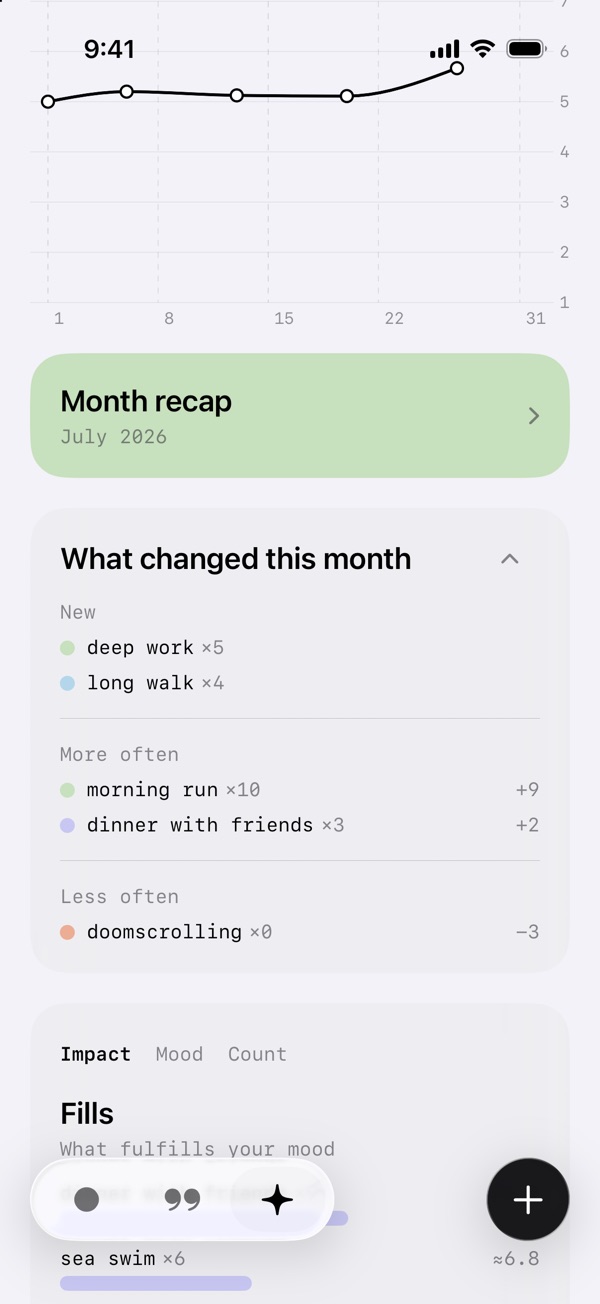
What is the "What changed" card?
Fills & Drains is the all-time picture: what tends to lift your mood and
what tends to lower it. The What changed card next to it
answers a different question — what moved in this period. It sits
in Insights between the recap card and Fills & Drains
and follows the chart: in the W view it is "What changed
this week", in M this month, in Y this
year. The day view has no card — a single day has no dynamics. Page the
chart back and the card follows.
It compares the period on the chart with the equally long period right
before it: this week with last week, August with July, 2026 with 2025. A
period that is still running is compared fairly — Tuesday of this week is
set against Monday–Tuesday of last week, not against the whole of last
week. Only rated entries with a mood other than neutral count, and a
factor counts once per entry — exactly as in Fills & Drains, so ×5 here
is the same ×5 there.
Four groups, each showing its five biggest shifts, with Show all for the rest:
New — factors mentioned for the first time ever in this period, at least twice.
More often — at least two more mentions than before, and at least twice as many.
Less often — at least two fewer mentions, and at most half as many. A drop to zero counts: the factor that went quiet is the one a plain list of this period could never show.
Mood changed — the mood you logged alongside a factor moved by a full point or more against its whole history before the period, with at least three mentions on each side. "Sea" used to come with 5–6 and now comes with 3–4.
The dot colour is the factor's all-time average mood, as in Fills & Drains.
The figures are plain counts: ×N mentions, +3 or −2 for the change, and in
the last group a mood difference with a decimal.
Tap a row to see the entries behind it within that period. The chevron in
the header folds the card down to its title, and it stays folded until you
open it again. The card appears only once there is something older than
the period to compare with, and stays hidden for a period without rated
entries; when nothing crosses the thresholds it says "No notable shifts".
Entries made in Local Mode are not analyzed and don't count. Part of
Premium — and of the free trial.
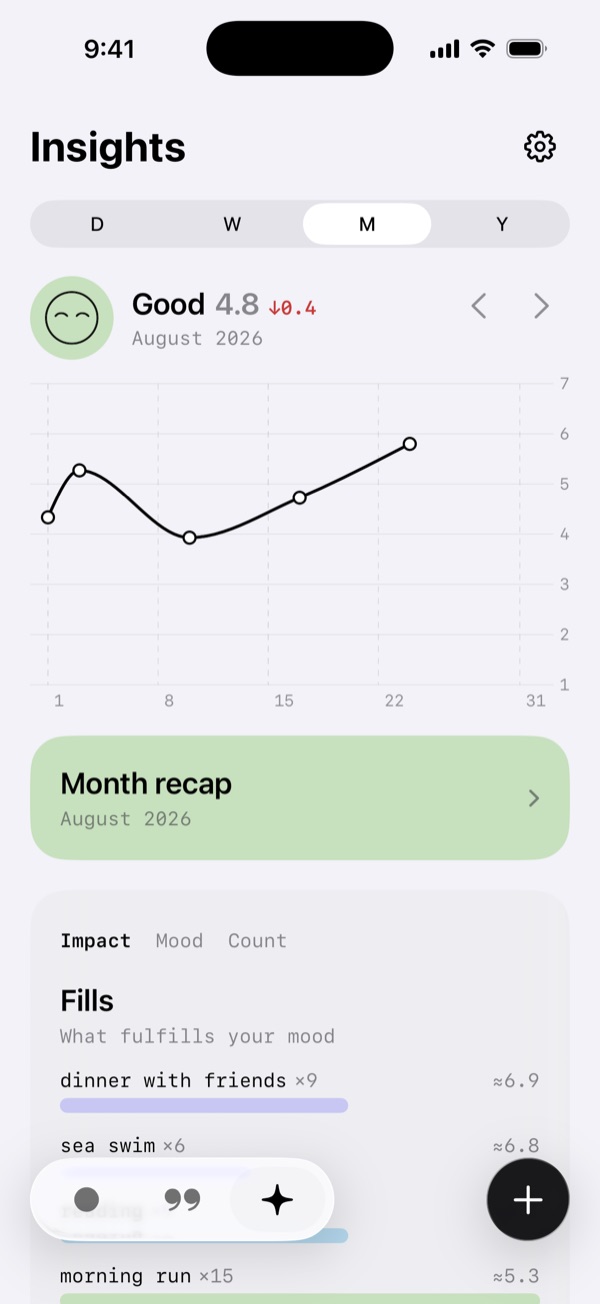
Insights, month view: new factors, more often, less often — every ×N is the same count as in Fills & Drains.
When does the chart start showing something?
Right away — from your very first entry. Open Insights: the
line chart shows your mood over Day, Week, Month, or Year (D / W / M / Y).
D plots each entry of the day on a time axis — tap a point
to open that entry. W / M / Y show one point per day (the day's average).
Use the arrows to move between periods. The more days you log, the more the
lines have to say.
The W period: one point per day, the week's average and trend in the header.
Can I search my entries?
Yes. Open the Journal tab and tap the magnifying glass. You
can search by words in your notes, filter by mood using the seven colored
faces under the search field, or combine both — for example, every entry
where you felt great and mentioned "training".
Tap several faces to include several moods at once.
A word narrows the list; the faces narrow it further — the results keep their colors.
Can I rate my mood without writing a note?
Yes. Choose a mood, then tap Skip on the note screen to save
a mood-only entry.
Pick a mood, go to the note screen, tap Skip — the entry is saved with the mood alone.
Can I add an entry without a mood rating?
Yes. On the mood selection screen tap Skip in the top-right
corner to go straight to the note and save a note-only entry. An entry is only
created when there is a mood rating or some note text.
A note-only entry is a full citizen of the analysis: it feeds the day,
week, and month recaps and the Fills & Drains factors just like a
rated one — only the charts skip it, since there's no number to plot.
Skip on the mood screen goes straight to the note; Save stores a note-only entry.
How do I add an entry for a past date?
Open the Calendar tab and tap the day you want. If that day
has no entries yet, the mood logger opens for that date — pick a mood, add an
optional note, and save. The entry is stored on the day you tapped, not today.
If the day already has entries, tapping it opens the day's list — use the
+ button there to add another. Press and hold a day to jump
straight to the mood logger.
An empty day opens the mood logger for that date; a day with entries opens its list, and "+" adds one more.
Can Moon remind me to log my mood?
Yes — Settings → Notifications has three reminder
options, and only one of them can be on at a time:
Daily Reminder — one notification a day at 21:00.
4× a Day Reminder — four notifications at 10:00, 14:00,
17:00, and 22:00, if you want finer-grained tracking. More entries per day
also means richer day recaps and better factor detection.
Custom Reminders — up to 8 reminders a day at the times
you choose. Part of Premium; if it ends, Moon switches
to the Daily Reminder at 21:00 and keeps your times for later.
Separately, Recap Notifications arrive at 9:00 when a
day, week, or month is over and its recap is ready — on the 1st also
when Rhythms update. You can turn them off in the same section.
The reminder toggles in Settings.
Is there a widget?
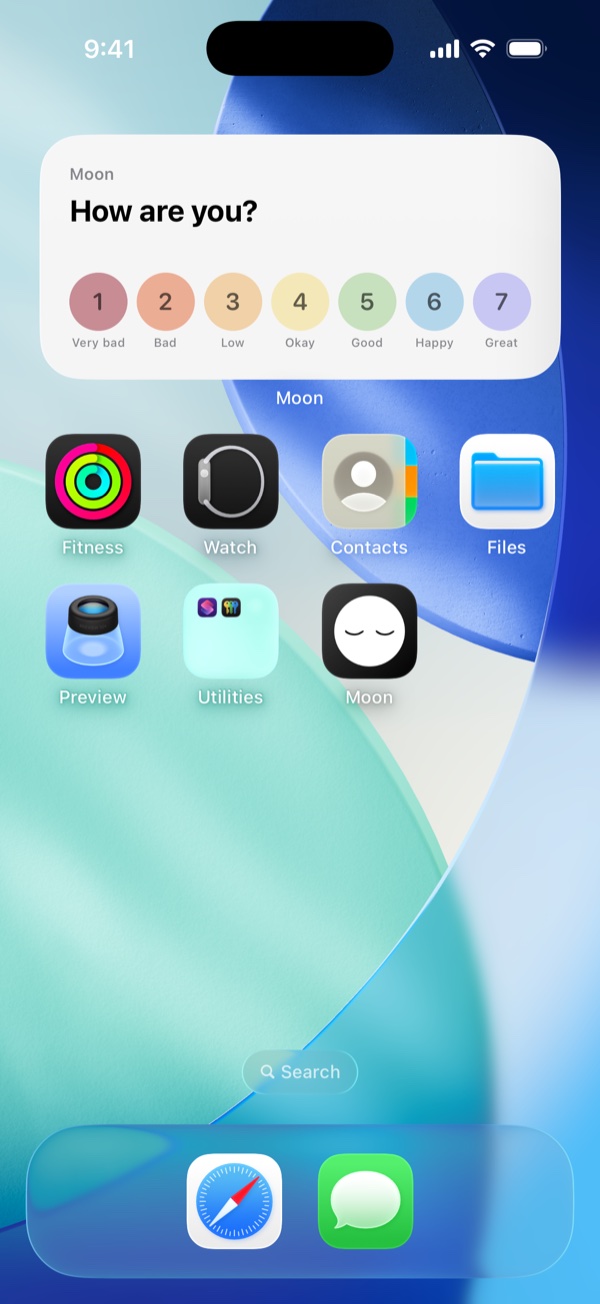
Yes — for both the home screen and the lock screen.
Home screen: a widget with seven mood buttons so you can log
a mood with one tap. Add it by long-pressing your home screen, tapping
+, and choosing Moon.
Lock screen: a circular widget with the Moon logo — tap it
to open the app and log your mood. Add it by long-pressing your lock screen,
tapping Customize → Lock Screen, then the widget area, and
choosing Moon.
The home-screen widget — one tap on a number logs that mood.
How are the daily, weekly, and monthly scores calculated?
The daily score is the average of all moods you logged that day.
The weekly and monthly scores are the average of those daily scores — every
day with at least one entry counts equally, so a busy day doesn't outweigh a
quiet one.
How is the mood trend calculated?
Next to the average in the chart header, an arrow compares the period on
the chart with the one before it: a day with the day before, a week
(Monday to Sunday) with the previous week, a month with the previous
month, a year with the previous year. The number shows how much your
average went up or down. For a period that is still running, the average
so far is compared with the whole previous period.
August averaged 4.8 — 0.4 below July, hence the red arrow.
What are the 14d, 30d and 90d lines on the chart?
In the M and Y views of
Insights, three trend lines can sit on top of your mood
line: your average mood over the last 14, 30 and 90 days. The 14-day
line reacts fastest; the 90-day line shows the long course. The day and
week views have none — over seven days these averages barely move. The
lines are computed on your device, with no AI. They are part of
Premium (and of the free trial); without a subscription
the chips under the chart show a lock.
How they are calculated. For each day, Moon takes your daily averages from the preceding 14, 30 or 90 days, counting only days with a rating. It is a weighted average: the more recent a day, the more it counts, so the line follows a change without jumping each time a day enters or leaves the window. A light smoothing pass then removes small ripples.
When a line appears. A point is drawn only when the window holds enough rated days — at least a fifth of it: 3 days for 14, 6 for 30, 18 for 90. Across a stretch without entries the line runs straight on to the next stretch with data, and it ends exactly where your mood line ends.
Showing and hiding. The chips under the chart switch each line on or off. While at least one line is on, the scale on the right zooms in to your data so the slope is visible; with all three off it is the usual 1–7 again. The line colours are deliberately outside the mood colours: a trend line never stands for a mood rating.
Is there a limit on the AI features?
Yes — a fair-use allowance per user. For normal journaling you won't
notice it. Extremely heavy use — hours of voice dictation or pasting
massive texts day after day — can approach it. The allowance renews with
each billing period: every month on a monthly plan, every year on a
yearly plan.
The app tells you as you get close (you'll see a warning around 70% of
the allowance, and the current level is always visible in Settings → AI
Usage). If the allowance runs out, the AI features pause until your next
billing period — your entries, charts, and everything else keep working
as usual.
Settings → AI Usage shows the current level in coarse steps.
Can I export my data?
Yes. In Settings tap Export Data — Moon
saves a JSON file with all your entries and recaps. Choose iCloud Drive in
the picker to keep a backup in your iCloud, or share it anywhere else. Your
data is yours.
Export is part of Premium (and of the free trial); the manual iCloud backup
(Back Up Now) and restoring from a file or from an iCloud
backup are always free — you can get your data back on any plan. Only the
automatic backup needs Premium. iCloud backups are encrypted on
the device and in iCloud.
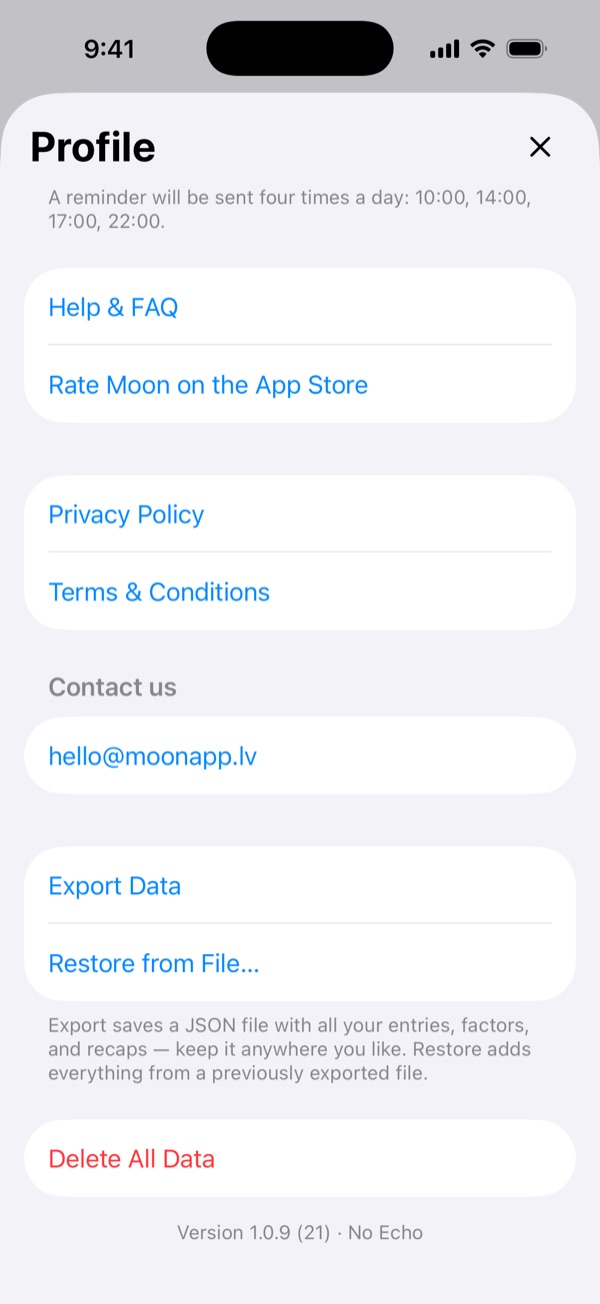
Export Data and Restore from File… at the bottom of Settings.
How private is my data?
Your entries live in your private iCloud account (Apple CloudKit) — we
can't read them, and there are no ads. Moon does collect anonymous usage
statistics under a random identifier: which screens are opened and which
features are used, such as "an entry was saved" — never the text of your
entries, your mood ratings, or health data. If you installed Moon from
an Apple Search Ads ad, Apple tells us only which ad it was, without any
advertising identifier.
Backups are encrypted at every step: the automatic backup file is protected
with iOS Data Protection on your device (unreadable while the phone is
locked), and every copy in iCloud — the synced database and the backup
file — is encrypted in transit and at rest. Apple manages those keys unless you
turn on Advanced Data Protection for your iCloud account, which
upgrades the iCloud copies to end-to-end encryption.
AI features send entry text anonymously through a secure proxy to the models;
the data isn't used for training and is kept no longer than 30 days. Apple
Health data is read on your device and never stored on our servers. Want zero
AI processing? Use Local Mode. See the
Privacy Policy for details.
How do I contact you?
In Settings, tap Write to us — the
first row of the Support group, near the top. Type your message, add your email so we
can reply, and attach a screenshot if it helps.
Along with the message, Moon sends a few technical details — app and iOS
version, device model, language and time zone, your plan, how many
entries you have, and whether sync, Local Mode, and Apple Health are on
— so we can help faster. Your entries themselves are never included, and
your email is used only to reply. If you close the form before sending,
your draft is kept for next time.